Posts

Creating Flash Projects
Image
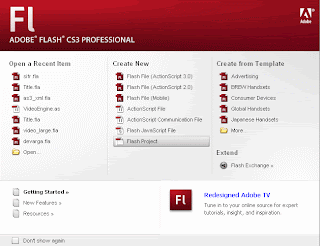
Flash makes it easy for you to create a project. When you open Flash, one of your first options is to create a Flash project. Under the central Create New selection, you’ll want to choose the final option, Flash Project. Select Flash Project to create a new project. The New Project window opens and asks you for a name and location for you new project file (the extension to all Flash projects is FLP). After you’ve created your project file, a new window—called the Project window—opens to list all of the files in your project. What you now have is an empty project folder. At this point, all you have to do is add your folders and files.

Working With Text: Embedding Fonts

Image
By default, Static text embeds the font outlines of this text so that it looks the same in your Web browser. Dynamic and Input text do not. If the user does not have the font on his computer, the text will look like error. Font embedding is managed in the Properties Inspector for any Dynamic or Input text. In the following image, I’ve selected a Dynamic text block from the Stage and highlighted the Properties for it. You’ll see a button on the right side labeled "Embed..." Selecting the Embed... button opens the Character Embedding window:

Embedding fonts in AS3

I love this! ... library, be-gone! package { import flash.util.describeType; import flash.display.MovieClip; import flash.display.TextField; import flash.text.TextFormat; import flash.text.AntiAliasType; public class Test extends MovieClip { // be sure this is pointing to a ttf font in your hardrive [Embed(source="C:\WINDOWS\Fonts\somefont.ttf", fontFamily="foo")] public var bar:String; public function Test() { var format:TextFormat = new TextFormat(); format.font = "foo"; format.color = 0xFFFFFF; format.size = 130; var label:TextField = new TextField(); label.embedFonts = true; label.autoSize = TextFieldAutoSize.LEFT; label.antiAliasType = AntiAliasType.ADVANCED; label.defaultTextFormat = format; label.tex...

Loading XML data using ActionScript 3.0

Image
Using XML is one of the best ways for structuring external content in a logical format that is easy to understand, process, and update. This tutorial will teach you the basics on how to load and process XML in Flash using ActionScript 3.0. You are assumed to have basic knowledge of ActionScript in order to follow this tutorial. Here is sample code loading XML in ActionScript 3 Here is sample XML code Download here

Retrieve Flash Variables in Actionscript 3

Image
In Actionscript 3 variables that are passed in through query string have been moved to the parameters property of LoaderInfo instance. Here’s a real simple way to retrieve flash variable in Actionscript 3 1. To access the query string fileName in Actionscript 3 , all you have to do in your actionscript 3 source code is 2. Here Html Code access Flash variables Download here

Open new window in WSS

today i testing Open New Window in Quick launch WSS Navigation. javascript:window.open('http:// www.google.com','_blank');history.go(0);

Custom Welcome User message in SharePoint

Image
Default Setting SharePoint display Logged-in user name as Welcome UserName. I have create Custom UserControl (name CustomWelcomeUser.ascx) 1. Go go C:\Program Files\Common Files\Microsoft Shared\web server extensions\12\TEMPLATE\CONTROLTEMPLATES then create new folder name "CustomWelcome" 2. Go go CustomWelcome then create New Custom UserControl name "CustomWelcomeUser.ascx"